How to Start
Welcome to Arsenal Health. Set up the apps you'll use to get in the door, book classes, track your progress, and see your health records. Each one takes just a few minutes.
Brivo Mobile Key: Your Phone Is Your Gym Key
The Brivo Mobile Key app lets you unlock the gym door with your phone. Setup takes about 2 minutes.
- 1
Find your invite email
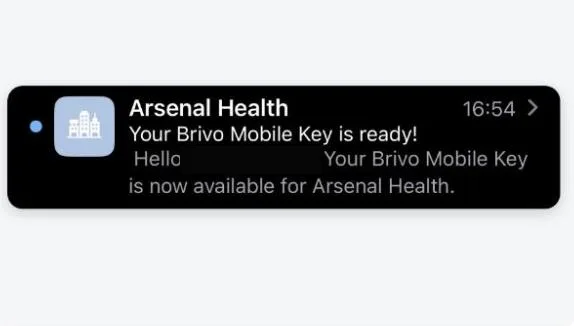
After you sign up, you'll get an email from Arsenal Health titled "Your Brivo Mobile Key is ready!" Open it on your phone. Don't see it? Check your spam or promotions folder.
- 2
Download the app
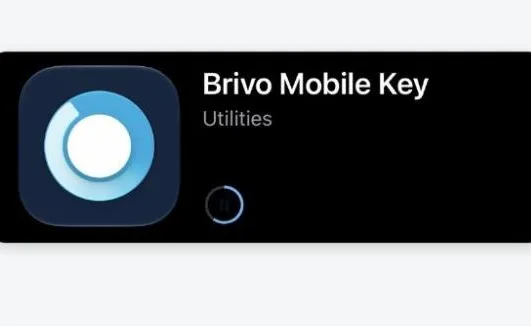
Search "Brivo Mobile Key" in the App Store (iPhone) or Google Play (Android) and install it. It's free, and the email has download buttons too.
- 3
Tap "Add Key to Account"
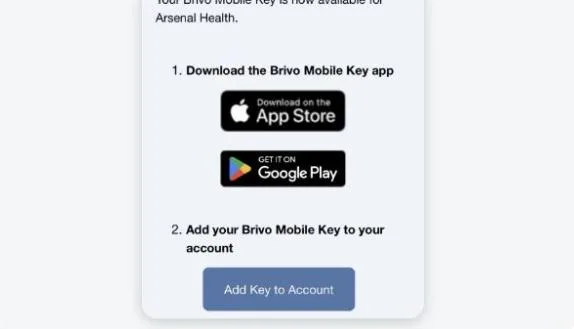
Back in the email, tap the Add Key to Account button. The app opens and adds your gym key for you.
- 4
Unlock the door
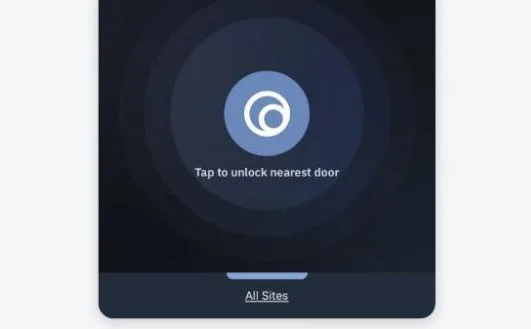
At the entrance, open the app and make sure Bluetooth is on. Tap "Tap to unlock nearest door." Wait for the click, then pull the door open.
Good to Know
- Use the same email you gave us when you signed up.
- Keep Bluetooth and location on. Tap + under Favorites to save the door.
- Your key is for you only - please don't let others in.
- Got a new phone? Ask us to resend your invite.
SweatPals: Book Your Classes
Use the SweatPals app to check in, see the week's workouts, and save your spot in class.
- 1
Download the SweatPals app.
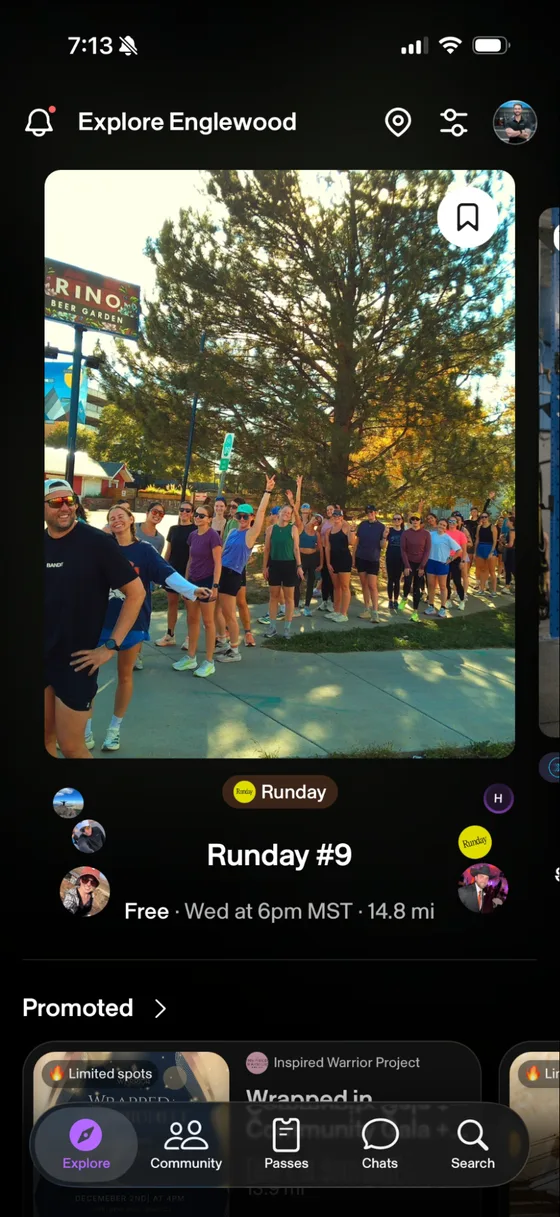
- 2
Open the Communities tab and search for "Arsenal Health."
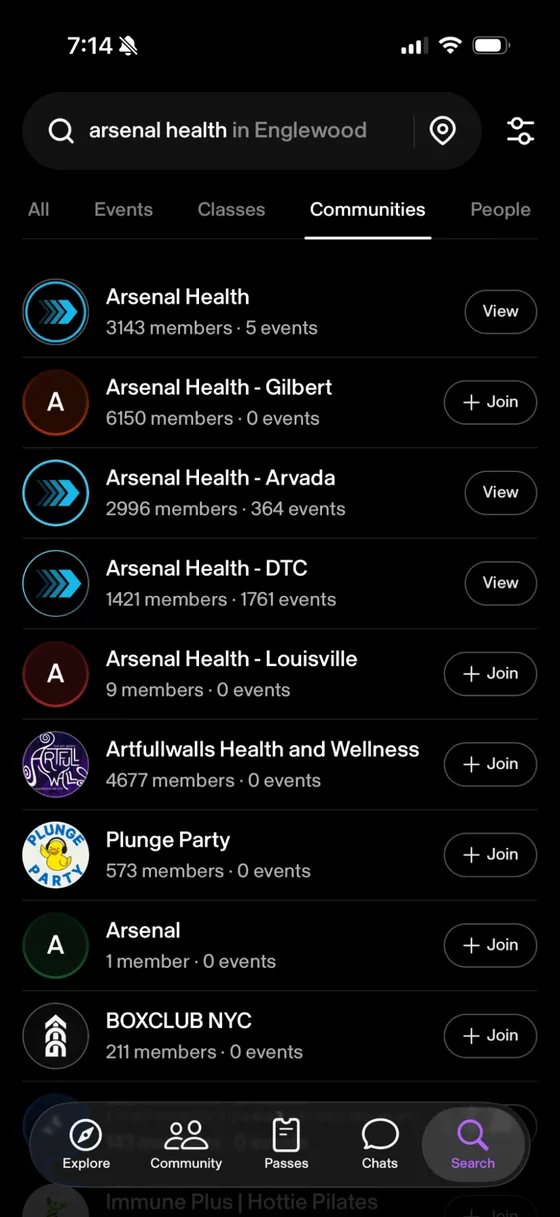
- 3
Follow your Arsenal Health location: Arvada or DTC.
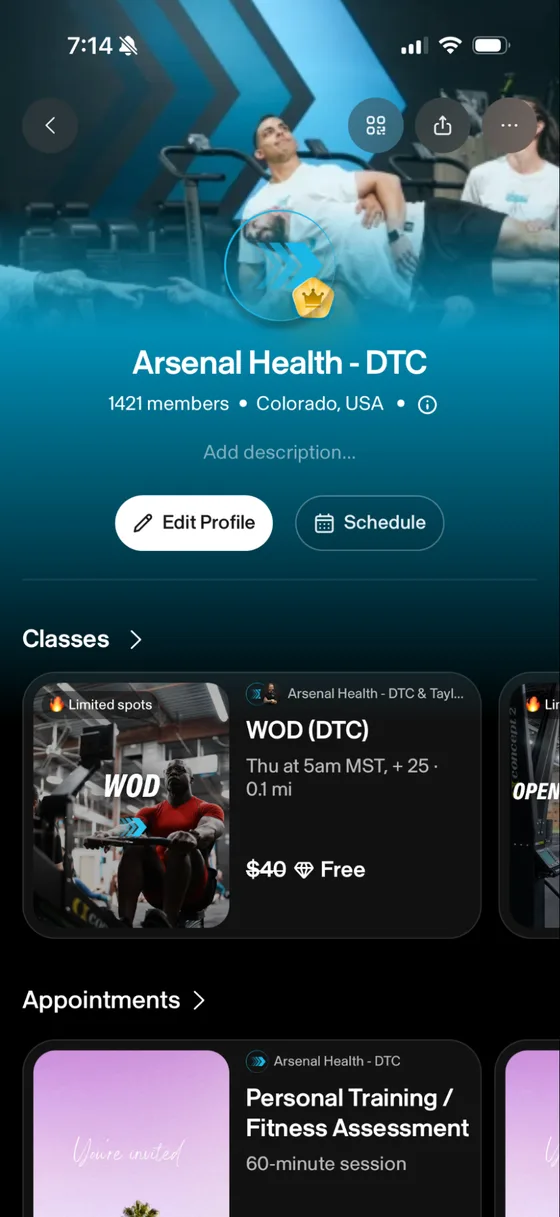
- 4
To check in for a class, tap the class.
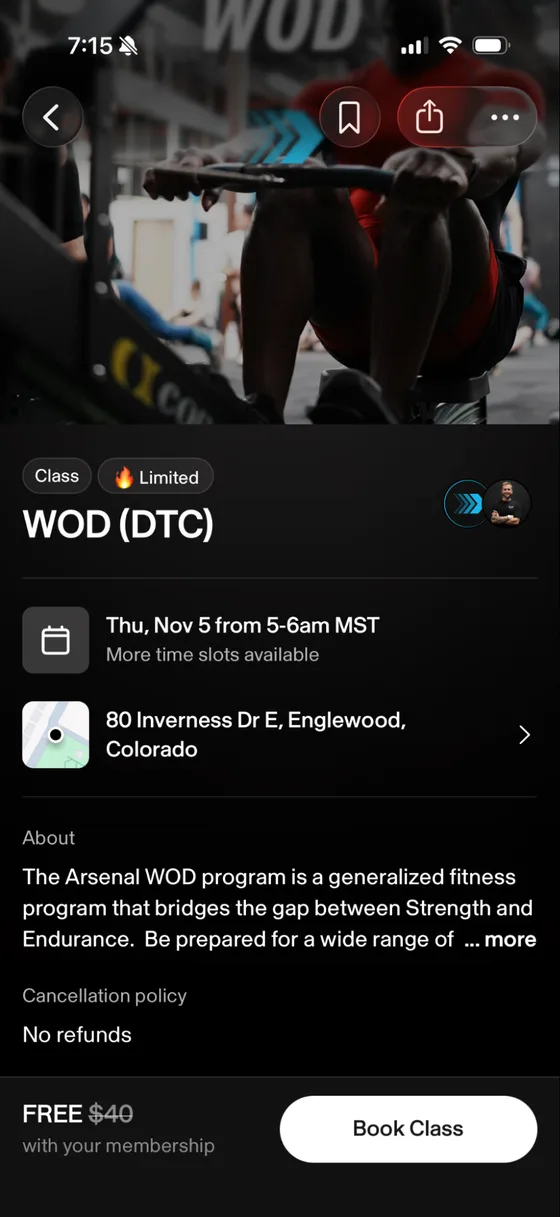
- 5
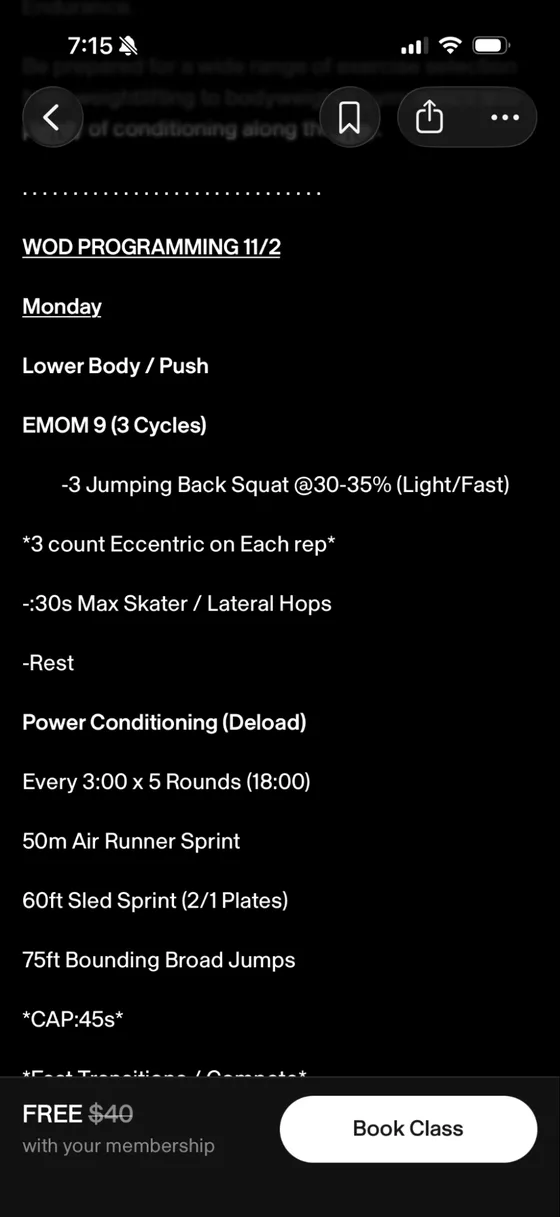
Tap the "More" tab to see the workouts planned for the week.
- 6
Tap "Book Class" to save your spot.
- 7
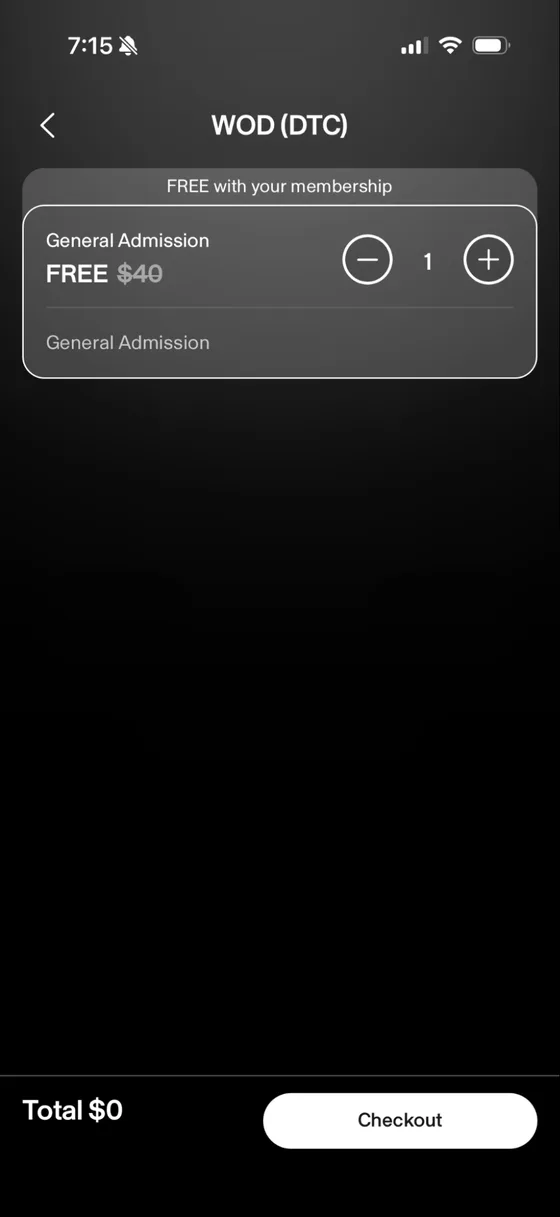
Continue to checkout.
- 8
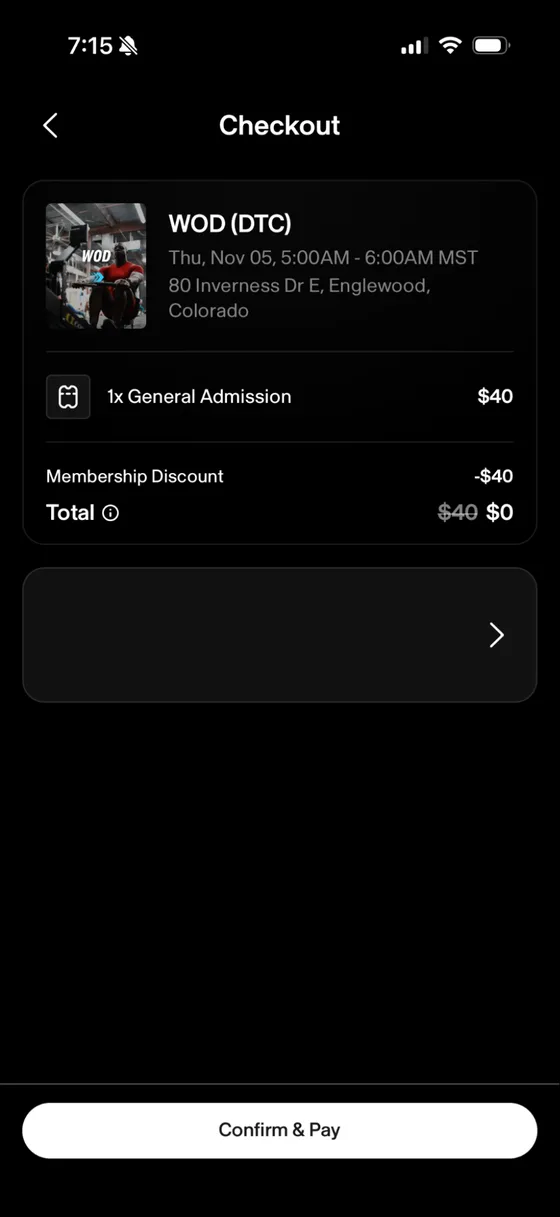
Tap "Continue and Pay" to confirm your spot. Your total should show $0.
InBody: Track Your Progress
The InBody app keeps your body scan results in one place, so you can see how you're changing over time.
- 1
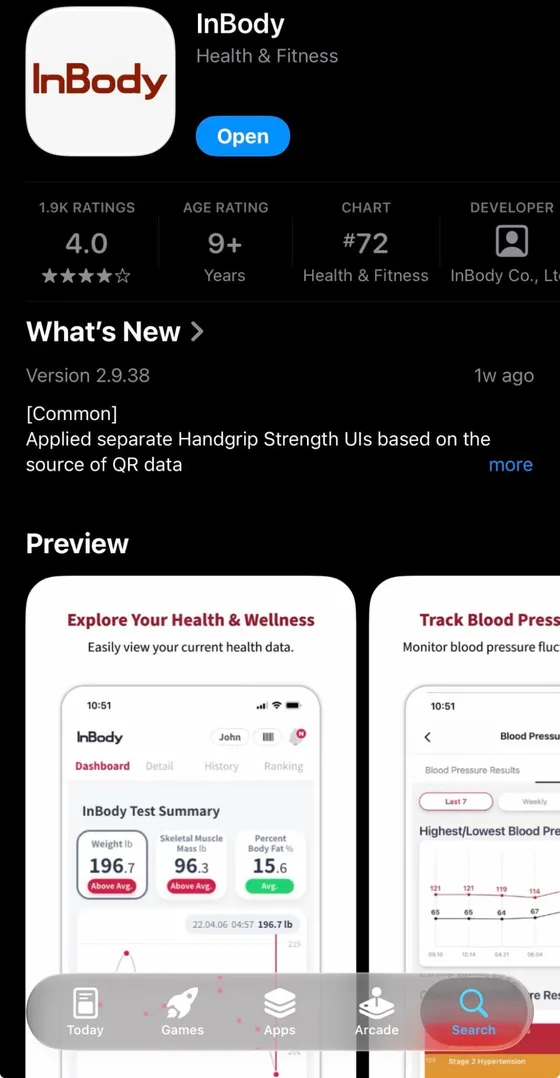
Go to the App Store and download "InBody."
- 2
Create your account.
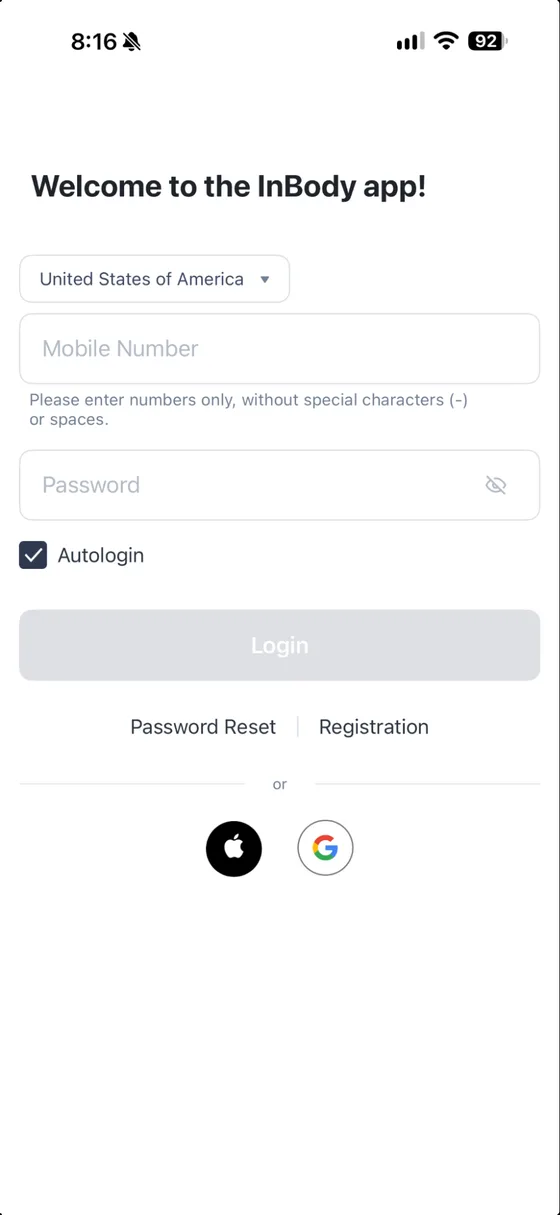
- 3
Track all of your progress in the app.
Patient Portal: Your Records and Messages
Your patient portal is where you see your documents, labs, and bills, and send secure messages to our team. It runs on Cerbo, our patient records system.
- 1
After our staff create your account in Cerbo, you'll get a welcome email.
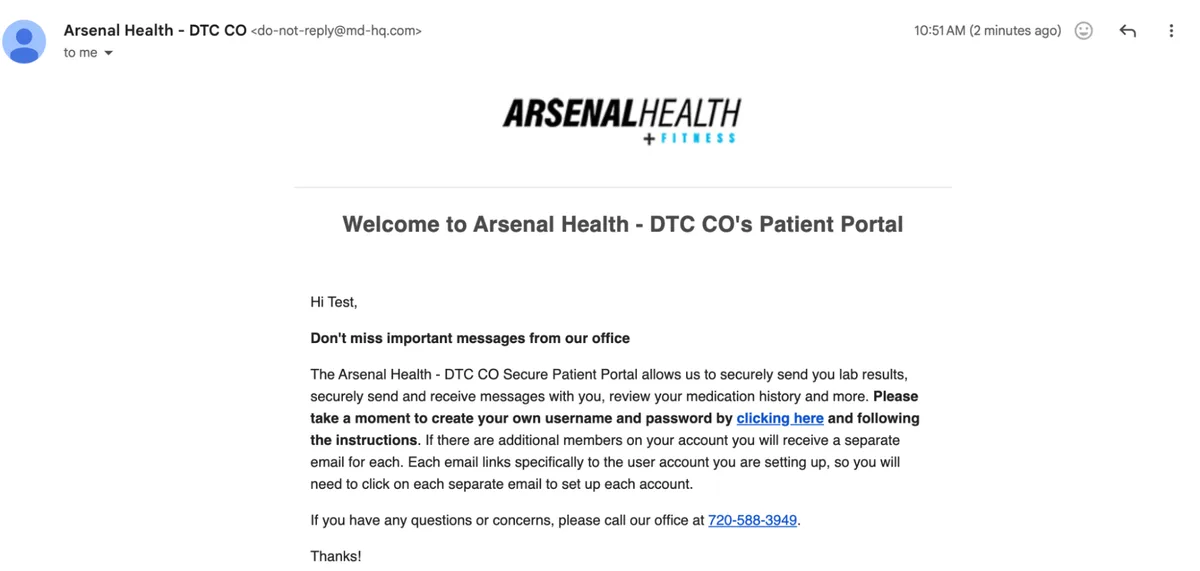
- 2
In the email, click the blue link that says "clicking here" to set your username and password.

- 3
The link opens a page where you choose your username and password.
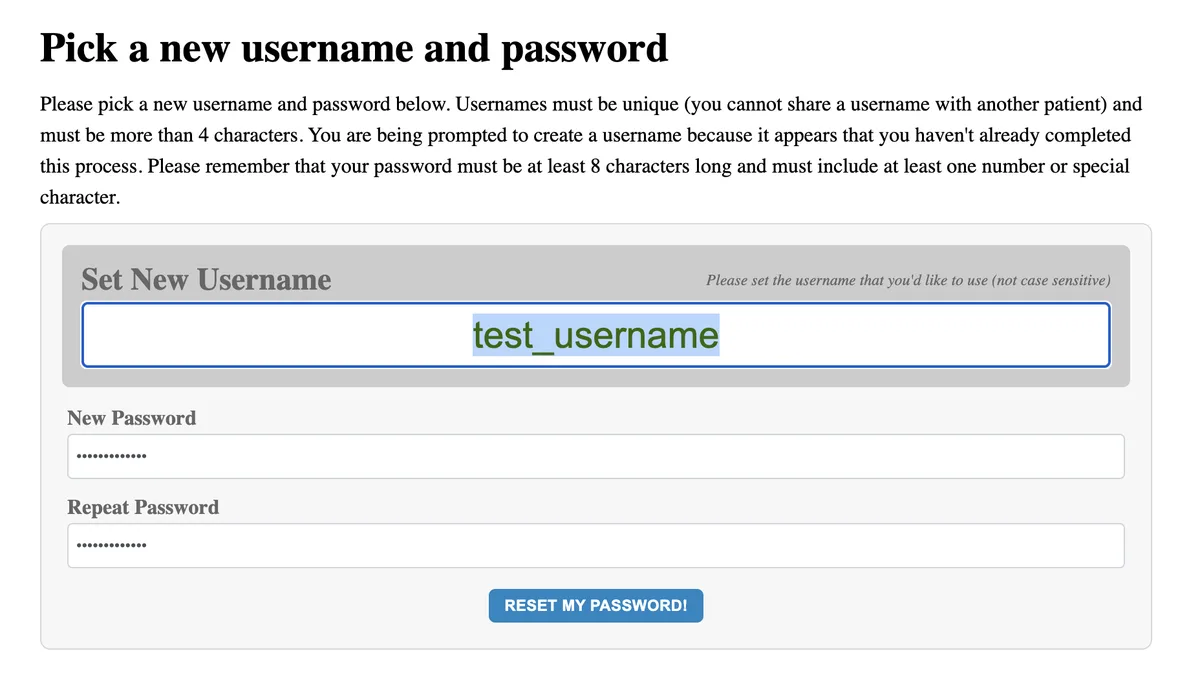
- 4
After you save them, you'll see the login screen. Log in to your patient portal.
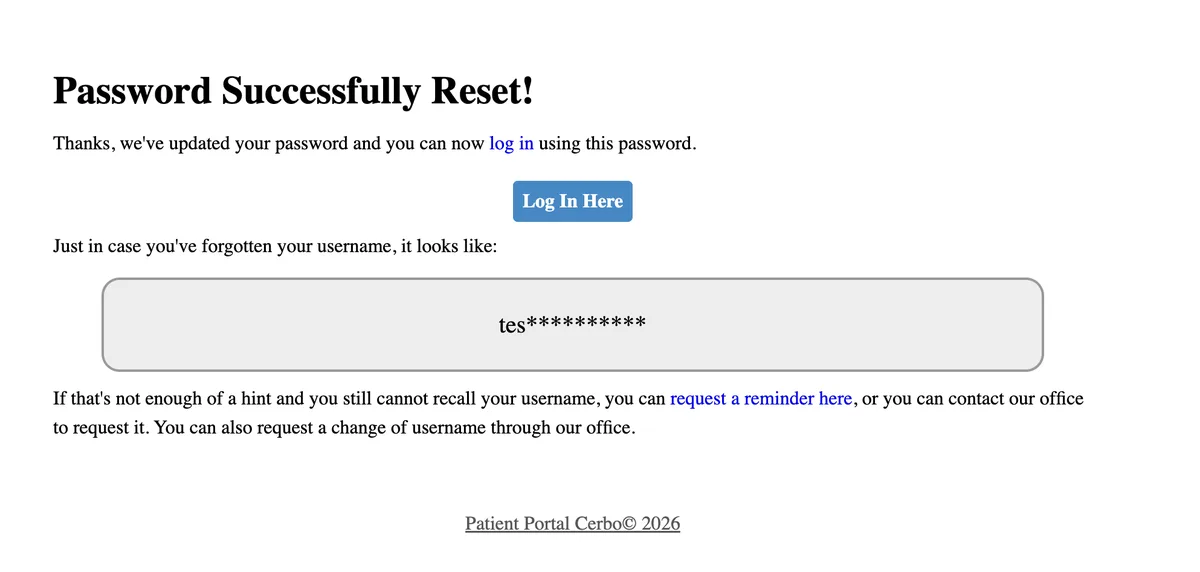
- 5
You now have access to your documents, labs, billing, and secure messages.
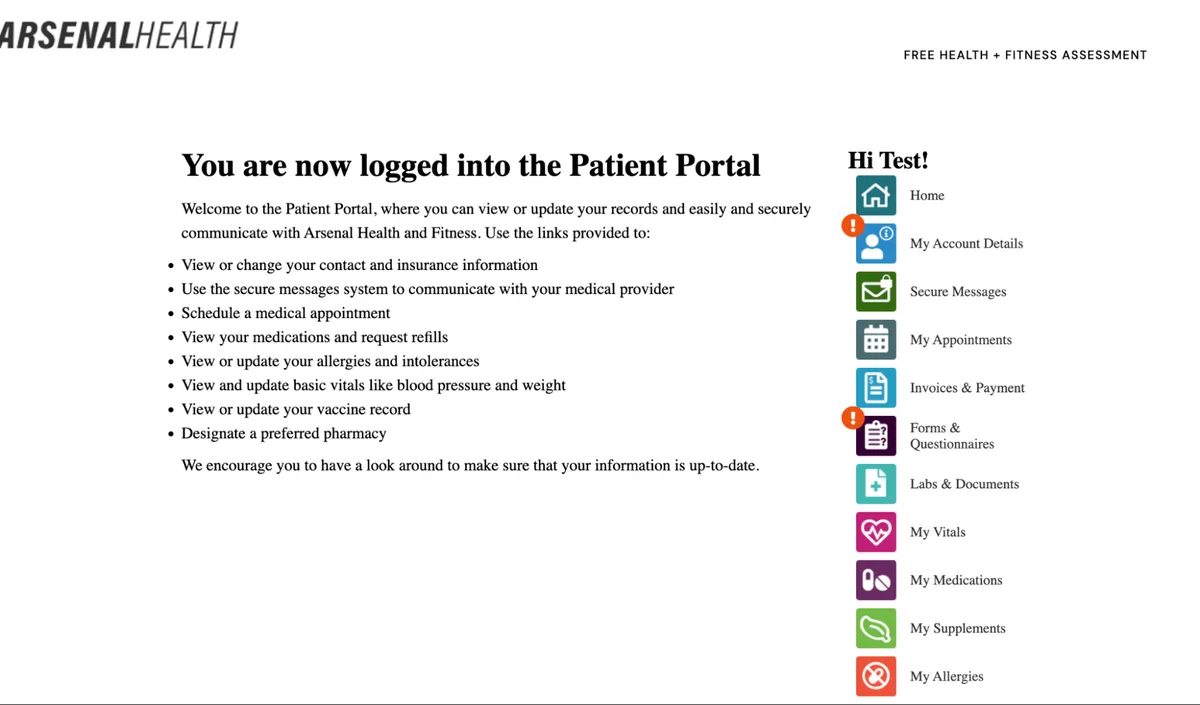
- 6
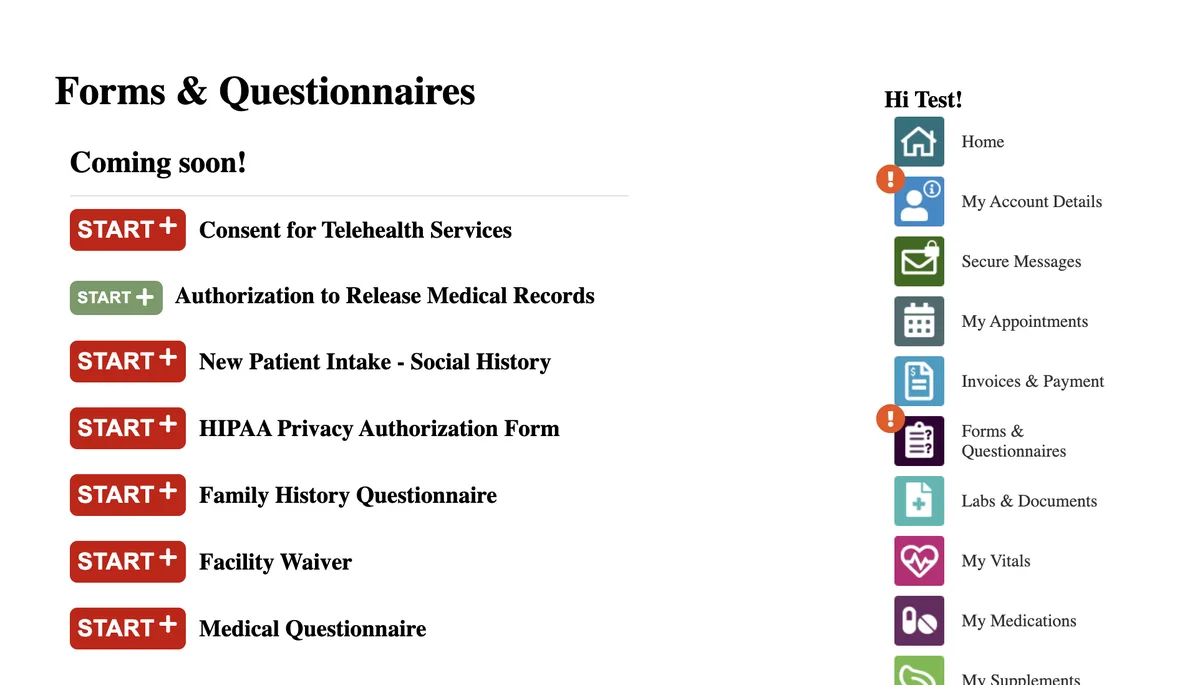
Fill out your consent forms and waivers before your first appointment.
Need Help Getting Set Up?
Stop by the front desk - we'll get you set up. You can also reach us here:
Email: info@arsenalhealth.com
Phone: (303) 578-0204